Organize your photos into stamp albums
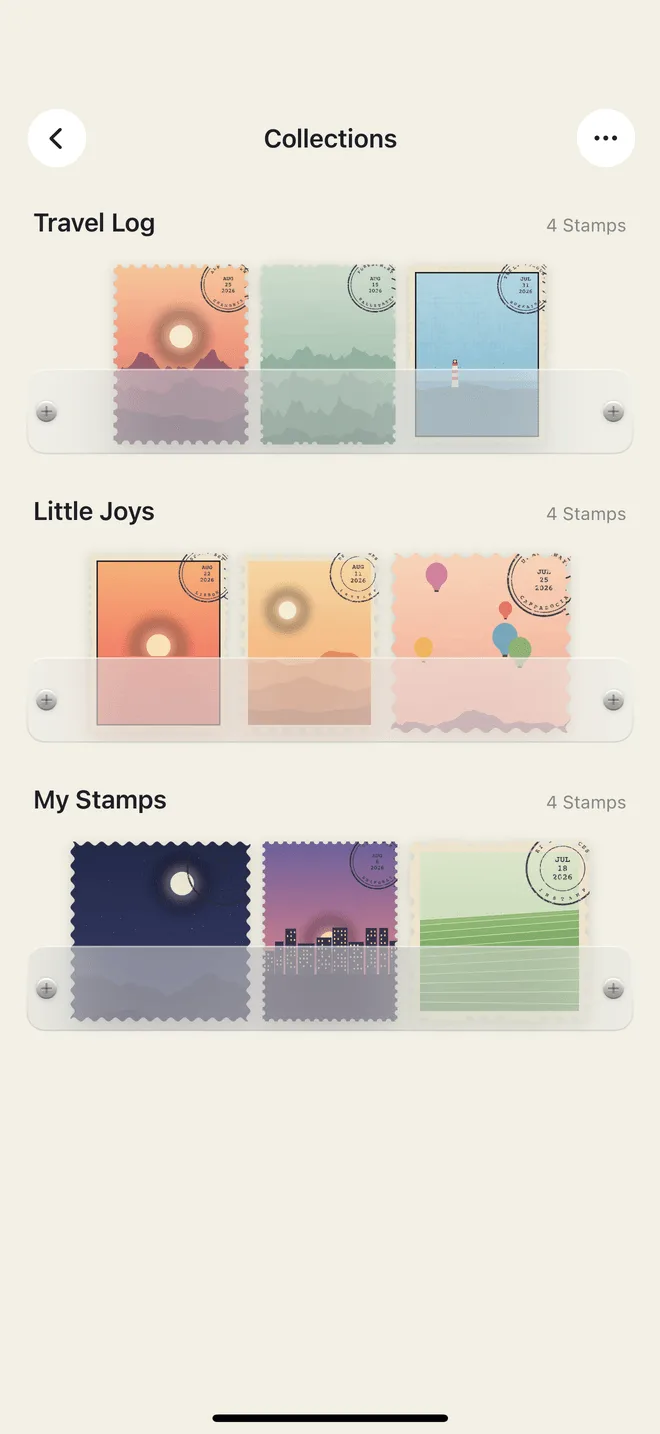
A photo library grows by accident. You take five pictures of the same doorway because one of them might be right, and all five stay. Nothing is ever lost, which is exactly the problem: when everything is kept, nothing is chosen. Most organizing advice answers that with more filing — folders, favourites, tags stacked on top of an already unmanageable pile. InStamp suggests something slower, and oddly quicker: make the handful of photos that actually matter into stamps, and let the collection they land in do the organizing.
Choosing is the organizing
A stamp asks for a little work. You frame the photo in the craft punch’s crop window, pick a perforation, and cancel it with the date — and, if you want, the place. None of it is difficult, but all of it is deliberate, and deliberate is the one thing a camera roll has never asked of you. By the time a photo has become a stamp, you have already decided it was worth the minute. (The full walkthrough is here if you have not made one yet.)
The free version leans on this. You get your first ten stamps, with every editing tool and every share style unlocked. Ten is not many. It sends you back through a year of photos asking which ones you would still want to look at — the same question every filing system is supposed to answer and usually postpones. InStamp Pro lifts the ceiling to unlimited stamps, but the habit tends to survive the upgrade: you make stamps of the ones you mean.
What a collection is
A collection is a book of stamps. Every stamp lands in one, so there is never a loose pile to deal with later, and you begin with a default book already there — the first stamp has somewhere to go before you have decided on any system at all.
With Pro you can keep as many books as you like, and that is where a library starts to have a shape: a book per trip, per person, per year, whatever division you actually think in. Each book carries a name and a colour of your choosing. The colour does more work than it sounds like it should. On a shelf of ten books you find the green one long before you have read a single title.
Four ways to display your books
The Collections page can show your books four ways, and the choice is not decoration — it changes how many you see at once and how much of each one you see.
- List is the compact index: a row per book, the most titles per screen. Best once you have more books than you can recognise by sight.
- Shelf stands them side by side like real albums, spines out. It is the display that most feels like walking up to a bookcase, and it makes colours count.
- Wallet presents them the way cards sit in a card wallet — fewer books in view, each one more present.
- Pouch treats a book like a document pouch, which suits collections you think of as filed away rather than on display.
There is no correct answer, and switching costs nothing. A good habit is to browse in Shelf and go looking in List.
Sorting, and your own order
Books can be sorted by name, by count, or by date. Each answers a different question: name for finding, count for seeing which subjects you actually keep returning to, date for a rough timeline of your own attention.
When none of those is right — and often none of them is — press and hold a book and drag it where you want. Manual order is the one that survives contact with real life: the trip you keep showing people goes first, the year you are still adding to sits near the top, and the finished ones drift down. Nothing about a library is alphabetical in your head.
Pages that read like a journal
Inside a book, Pro adds exclusive page layouts: dot grid, ruled and squared. They are the paper you would have bought for a notebook, and they do the same thing here — they give the stamps something to sit against, so leafing through a collection feels like turning the pages of a journal rather than scrolling a grid. Dot grid disappears politely behind the stamps. Ruled makes a book read as a sequence. Squared holds a lot of small stamps without looking crowded.
Three ways to divide a library
By trip
One book per journey, named for the place and dated by the stamps inside it. Five days in Kyoto becomes twelve stamps: the train window, the wrong turn, the meal you would not have ordered at home. Postmark them with the place and the book more or less writes its own captions — there is a guide to that.
By person
A book for each of the people you photograph most. Everything with your mother in it, in one place, in the order it happened. This is the division that pays off years later, and the one no camera roll gives you without a search.
By the small repeated things
The most rewarding books are often the least eventful: every good coffee, every front door you liked, the same tree in four seasons, the sky at six o’clock. Any subject you photograph without deciding to becomes, once collected, something you clearly care about. A book of thirty doors is a better record of a year than thirty unrelated highlights.
The same shelf on every device
Everything is processed on your iPhone, and there are no servers behind InStamp. If you want your stamps and books on more than one device, iCloud Sync is a Pro feature: sign in with the same Apple ID on each device with iCloud enabled, and your collections follow. A large library takes a while the first time. If it seems stuck, the support page has the short checklist.
Sharing a stamp with its page
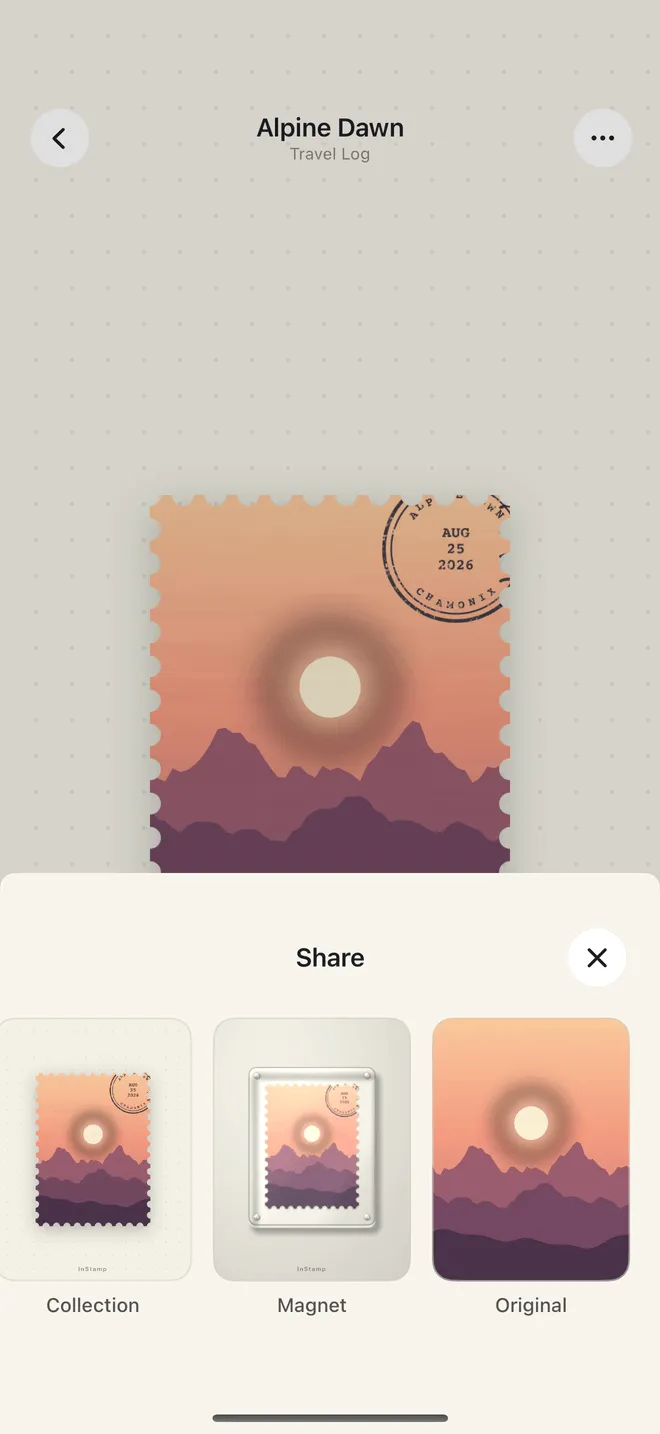
The share sheet sends one stamp at a time, and the Collection share style sends it the way it sits in the book: the stamp on its album page, with that book’s dot grid, rules or squares behind it. It is the style to use when the book itself is part of the point — a stamp from the Kyoto book looks like a page from the Kyoto book. The other four styles (Transparent, Ambient, Magnet and Original) take the stamp out of the book. Exports are high resolution, and go either to your photo library or straight to a friend. Shares from the free version carry a small watermark; Pro can turn it off.
Which brings organizing back where it started. You did not sort a library. You chose some things, put them in books, and now there is a shelf.